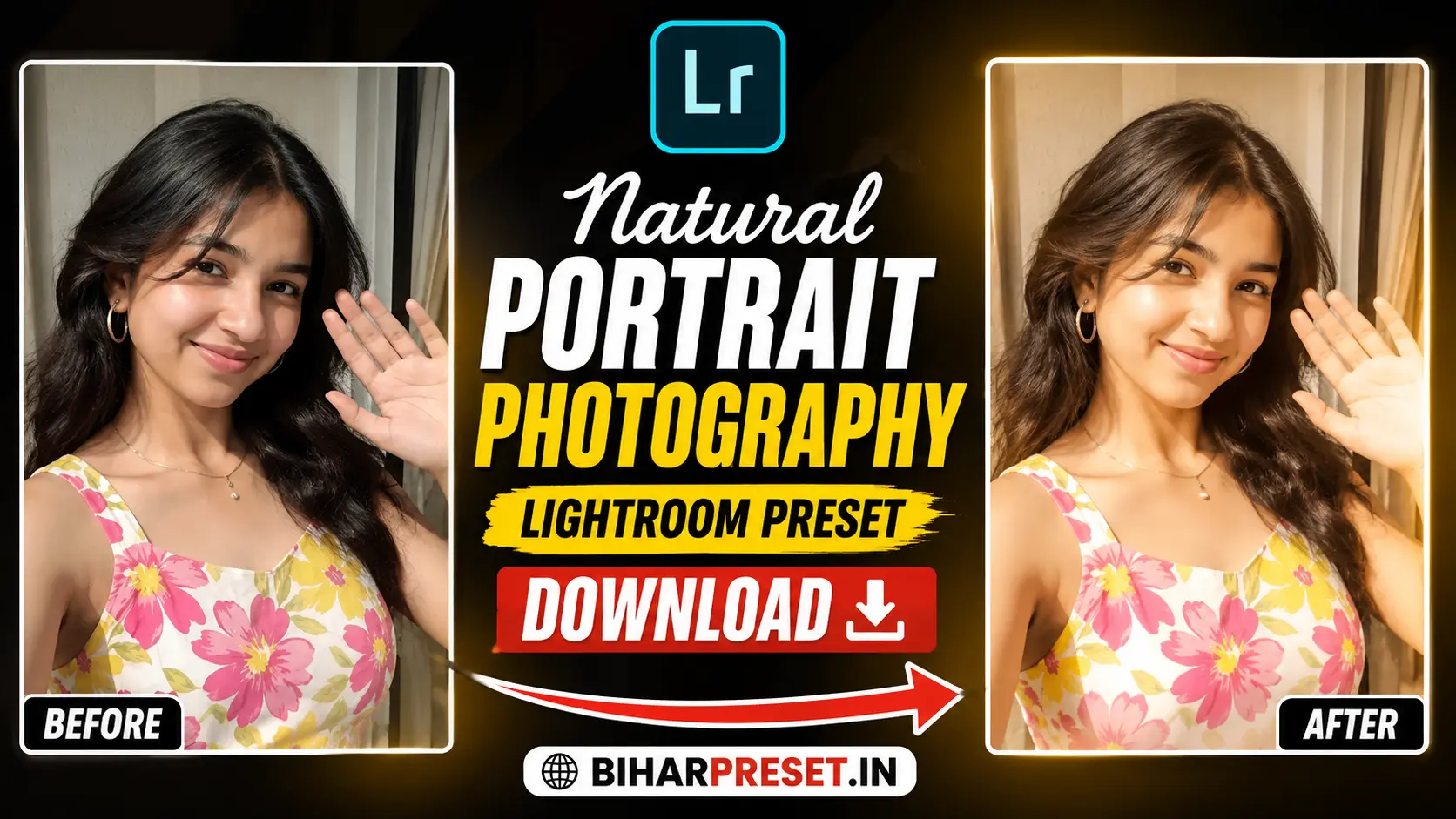
Natural portrait photography has become one of the most popular styles on Instagram, Pinterest, and photography blogs. People now prefer soft, clean, realistic portraits instead of over-edited images. A good natural portrait captures real emotions, balanced skin tones, soft sunlight, and a cinematic feel without making the photo look fake.

With the help of Adobe Lightroom presets, even beginners can create professional-quality portraits using just a mobile phone or camera. In this guide, you will learn how to capture stunning natural portraits, edit them professionally in Lightroom, and download the best Lightroom preset for portrait photography.
Natural portrait editing is not about adding too many filters. It is about improving light, color, skin texture, and mood while keeping the original beauty of the image alive. (
What Is Natural Portrait Photography?
Natural portrait photography focuses on real-looking photos with soft lighting and authentic colors. Instead of heavy editing or artificial effects, this style highlights natural beauty and emotional expression.
This type of photography usually includes:
- Soft sunlight
- Outdoor locations
- Warm skin tones
- Natural poses
- Balanced background blur
- Clean color grading
Natural portraits work extremely well for:
- Instagram posts
- WhatsApp DP
- Fashion photography
- Lifestyle blogging
- YouTube thumbnails
- Personal branding
The biggest advantage of natural portraits is that they feel timeless and premium without looking over-processed.
Why Lightroom Is Best for Portrait Editing
Adobe Lightroom is one of the most powerful photo editing tools for portrait photography. It helps photographers improve image quality while maintaining a natural look.
Lightroom provides:
- Professional color grading
- Skin tone balancing
- Light adjustments
- Sharpness control
- Mobile-friendly editing
- One-click preset support
Many creators now use Lightroom presets because they save editing time and instantly create a professional aesthetic look. (BIHAR UPDATE)
Best Time for Natural Portrait Photography
Lighting is the most important part of portrait photography. Even an expensive camera cannot create a beautiful portrait in harsh lighting.
Golden Hour
Golden hour is the best time for natural portraits.
This happens:
- After sunrise
- Before sunset
Golden sunlight creates:
- Soft shadows
- Warm skin tones
- Cinematic mood
- Natural glow
Photos taken during golden hour usually require less editing because the light already looks beautiful.
Best Locations for Portrait Photography
Outdoor backgrounds improve portrait quality naturally. Nature adds depth, texture, and softness to the image.
Popular portrait locations include:
- Gardens
- Open fields
- Balcony sunlight
- Parks
- Flower areas
- Forest roads
- Window light portraits
Simple backgrounds often look more premium because they keep focus on the subject. (BIHAR UPDATE)
Best Camera Settings for Portrait Photography
If you use a DSLR or mirrorless camera, these settings can help:
| Setting | Recommended Value |
|---|---|
| Aperture | f/1.8 – f/2.8 |
| ISO | 100 – 400 |
| Shutter Speed | 1/200 or faster |
| White Balance | Auto or Warm |
| Focus Mode | Eye Focus |
For mobile photography:
- Use portrait mode
- Avoid digital zoom
- Clean camera lens
- Use natural light
Natural Portrait Pose Ideas
A natural pose makes the image feel alive and emotional.
Best portrait poses include:
Soft Smile Pose
A small natural smile creates a warm and friendly look.
Looking Away Pose
Instead of looking directly at the camera, look sideways for cinematic vibes.
Hand Near Face Pose
This creates depth and softness in portraits.
Walking Shot
Walking naturally adds movement and realism to the image.
Window Light Portrait
Indoor window lighting creates soft shadows and professional depth.
Lightroom Settings for Natural Portrait Editing
These Lightroom settings create a soft natural look.
Basic Adjustments
| Setting | Value |
|---|---|
| Exposure | +0.30 |
| Contrast | -10 |
| Highlights | -40 |
| Shadows | +35 |
| Whites | +15 |
| Blacks | -10 |
Color Adjustments
| Setting | Value |
|---|---|
| Temperature | Slight Warm |
| Vibrance | +20 |
| Saturation | +5 |
Effects
| Setting | Value |
|---|---|
| Texture | -5 |
| Clarity | -8 |
| Vignette | -10 |
These settings help create smooth skin tones and soft cinematic lighting.
How to Use Lightroom Presets
Using a preset is extremely easy.
Step 1
Open Lightroom Mobile.
Step 2
Import your portrait photo.
Step 3
Open the preset file.
Step 4
Copy preset settings.
Step 5
Paste settings on your photo.
Step 6
Adjust exposure slightly if needed.
That’s it. Your portrait will instantly look professional.
Tips for Better Portrait Editing
Avoid Over Editing
Too much saturation and skin smoothing can ruin portrait quality.
Keep Skin Natural
Natural skin texture looks more professional than plastic skin editing.
Maintain Balanced Colors
Warm tones usually work best for portrait photography.
Use Soft Background Blur
Do not over-blur the background.
Focus on Eyes
Sharp eyes make portraits more attractive.
Why Natural Portraits Perform Better on Social Media
Natural-looking photos usually get higher engagement because people connect more with realistic content.
Natural portraits:
- Feel authentic
- Look premium
- Build trust
- Improve profile aesthetics
- Perform well on Instagram reels and Pinterest
Creators and influencers now prefer soft cinematic editing over extreme filters. (BIHAR UPDATE)
Best Lightroom Preset Features
A good natural portrait preset should provide:
- Soft warm tones
- Balanced highlights
- Smooth skin look
- Cinematic contrast
- Natural color grading
- Mobile-friendly editing
The best presets improve photos without making them look fake.
SEO Tips for Photography Blog Ranking
If you want your photography article to rank on Google:
Use Proper Keywords
Examples:
- Natural portrait photography
- Lightroom preset download
- Portrait editing preset
- Lightroom mobile preset
Optimize Images
Compress images under 200KB.
Add ALT Text
Use descriptive image names and alt text.
Use Internal Linking
Link related photography articles together.
Write Helpful Content
Google prefers useful and easy-to-read articles. (BIHAR UPDATE)
Frequently Asked Questions
Which Lightroom preset is best for portraits?
Soft warm cinematic presets are best for natural portrait photography because they maintain realistic skin tones.
Can I edit portraits on mobile?
Yes. Lightroom Mobile allows professional portrait editing directly from your smartphone.
What is the best lighting for portraits?
Golden hour sunlight is considered the best natural light for portrait photography.
How can I make portraits look professional?
Use soft lighting, natural poses, balanced editing, and clean backgrounds.
Conclusion
Natural portrait photography is all about simplicity, emotion, and balanced editing. A beautiful portrait does not need heavy filters or complicated effects. Soft lighting, clean composition, and professional Lightroom editing are enough to create stunning results.
With the right Lightroom preset, even beginners can transform ordinary photos into premium cinematic portraits. Whether you are a content creator, Instagram user, blogger, or photographer, natural portrait editing is one of the best styles for creating timeless and engaging images.
For the best results, focus on natural light, simple poses, and realistic color grading. That combination always creates elegant and professional portrait photos.